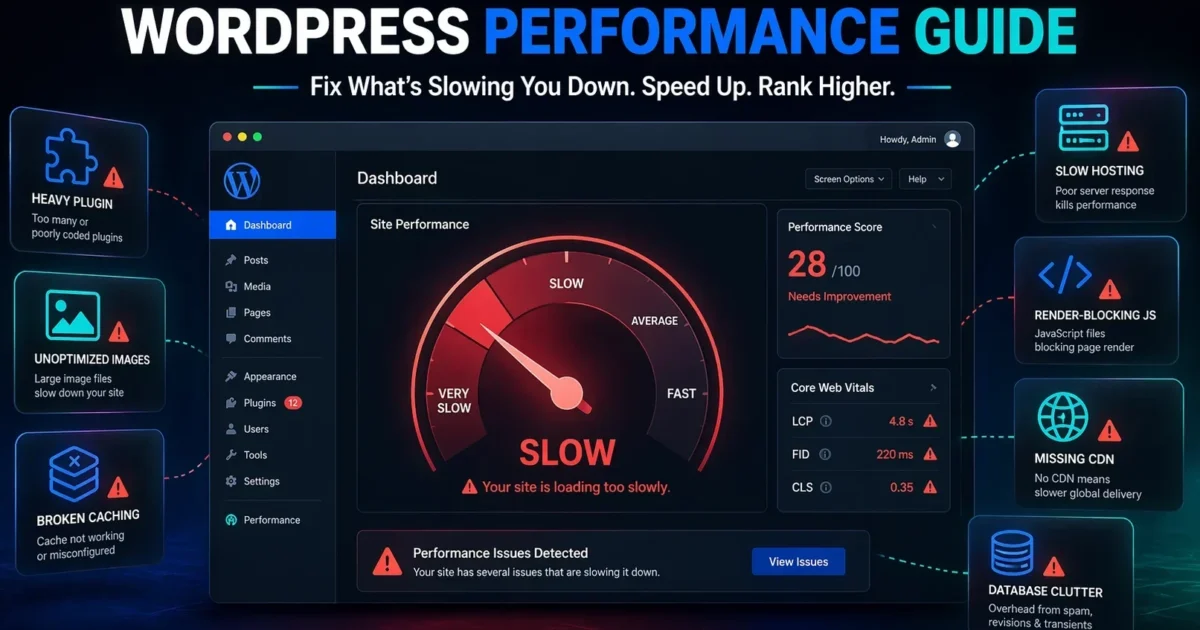
Site speed is a confirmed Google ranking factor. But it’s not just about ticking a box—every extra second of load time can slash your conversions, increase bounce rates, and silently push your pages down the SERPs. For WordPress users, the platform’s flexibility can become a double‑edged sword: plugins, themes, and media files can accumulate performance debt that directly hurts your Core Web Vitals.
In this guide, we’ll walk through the 10 most common WordPress speed killers that are likely affecting your site right now—and show you exactly how to fix them, no advanced coding required.
Why Speed Matters for SEO in 2026
Google’s Core Web Vitals—Largest Contentful Paint (LCP), Interaction to Next Paint (INP), and Cumulative Layout Shift (CLS)—are official ranking signals. Slow sites fail these metrics and, as a result, experience lower visibility in search results. Beyond rankings, a sluggish website delivers a poor user experience (UX), which leads to fewer page views, lower engagement, and ultimately less revenue.
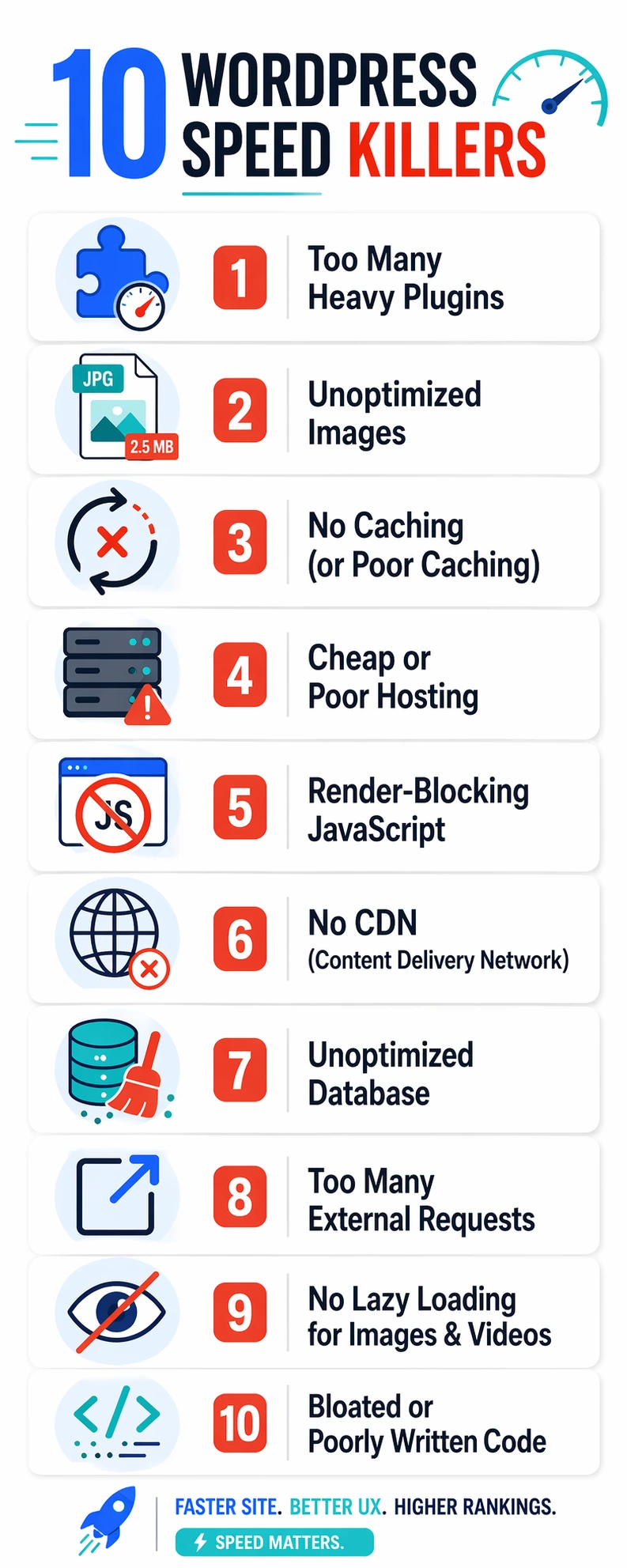
| Speed Killer | SEO Impact | Difficulty to Fix |
|---|---|---|
| 1. Too Many Bloated Plugins | High | Easy |
| 2. Unoptimized Images | Very High | Easy |
| 3. No Caching (or Poor Configuration) | Very High | Easy |
| 4. Cheap / Underpowered Hosting | High | Medium |
| 5. Render‑Blocking JavaScript & CSS | High | Medium |
| 6. No Content Delivery Network (CDN) | Medium | Easy |
| 7. Database Overhead & Autoloaded Data | Medium | Easy |
| 8. Too Many External Scripts (Ads, Fonts, Embeds) | Medium | Medium |
| 9. Not Using Lazy Loading | High | Easy |
| 10. Unminified HTML, CSS & JS | Low–Medium | Easy |
The 10 WordPress Speed Killers (And Their Fixes)
Let’s dive into each issue, its effect on SEO, and exactly what to do about it.
1. Too Many Bloated Plugins
Every active plugin adds PHP execution time, database queries, and often extra CSS/JS files. Some plugins are poorly coded or load their assets on every page regardless of need, inflating total page size and server response time. Fix: Audit your plugins—remove any you no longer use. Replace heavy multi‑feature plugins with lightweight, single‑purpose alternatives. Use Query Monitor or a performance plugin to identify slow queries.
2. Unoptimized Images
Large, uncompressed images are the single biggest contributor to high LCP times. WordPress often stores multiple sizes, but if the original uploaded file is 5 MB, even resized versions are bloated. Fix: Convert images to WebP format (modern, smaller file size). Use lossy or lossless compression. Serve responsive images using `srcset`. Plugins like ShortPixel, Imagify, or LiteSpeed Cache can automate this.
3. No Caching (or Poor Configuration)
Without caching, WordPress generates each page dynamically on every visit, hitting the database and PHP. This drastically increases server response time (Time to First Byte). Fix: Install a caching plugin like LiteSpeed Cache (if on a LiteSpeed server) or WP Rocket. Enable page caching, browser caching, and object caching (Redis/Memcached). After enabling, test TTFB to ensure it’s under 200 ms.
4. Cheap / Underpowered Hosting
Shared hosting environments that oversell resources lead to CPU throttling, slow I/O, and poor database performance. Fix: Upgrade to managed WordPress hosting with NVMe storage, recent PHP 8.x, and built‑in server‑side caching. Providers like Cloudways, Kinsta, or a VPS with LiteSpeed give dramatically better results.
5. Render‑Blocking JavaScript & CSS
Scripts and stylesheets that load in the `
` and block rendering until they’re downloaded delay the first paint. This directly harms LCP and FCP. Fix: Defer non‑critical JS (add `defer` attribute), inline critical CSS, and asynchronously load remaining CSS. Most performance plugins have options to “Eliminate render‑blocking resources.”6. No Content Delivery Network (CDN)
When your server is located in one geographic region, visitors far away experience higher latency. Fix: Use a CDN like Cloudflare (free plan available), BunnyCDN, or KeyCDN. A CDN caches static assets (images, CSS, JS) on edge servers globally, reducing latency for all users.
7. Database Overhead & Autoloaded Data
Over time, your WordPress database accumulates post revisions, spam comments, transients, and orphaned metadata. Large autoloaded options can slow every page load. Fix: Use a plugin like WP‑Optimize or Advanced Database Cleaner to remove revisions, spam, and transients. Monitor autoloaded data with a plugin like “Autoload Checker” and set large, rarely used options to not autoload.
8. Too Many External Scripts (Ads, Fonts, Embeds)
Third‑party scripts—Google Fonts, ad networks, social media embeds, analytics—introduce additional DNS lookups and download overhead. Each script can block rendering or cause layout shifts. Fix: Host Google Fonts locally (or use system fonts). Load ads asynchronously. Remove unnecessary embeds and replace them with static images linked to the original. Preconnect to external domains that are critical.
9. Not Using Lazy Loading
Off‑screen images and iframes are loaded eagerly by default, wasting bandwidth and delaying the initial visible content. Fix: Enable native lazy loading (`loading=”lazy”`) on images and iframes. Most modern themes and plugins can toggle this. For background images or videos, use a JavaScript lazy‑load solution or the `decoding=”async”` attribute.
10. Unminified HTML, CSS & JS
While the savings are smaller, minification strips unnecessary characters (spaces, comments) from code, reducing file size and parse time. Fix: Enable minification in your caching plugin (LiteSpeed, WP Rocket) or use a dedicated plugin like Autoptimize. Combine inline CSS/JS where possible, but test thoroughly to avoid breakage.
🛠️ Need a quick health check? Our Free SEO Audit Tool scans your website and gives you instant feedback on title tags, meta descriptions, speed issues, and more—just like the fixes above.
How to Find These Killers on Your Own Site
You don’t need to guess. Use these free tools to pinpoint exactly what’s slowing your WordPress site:
- Google PageSpeed Insights – identifies render‑blocking resources, largest contentful paint element, and improvement opportunities.
- GTmetrix – waterfall chart shows every request and their sizes, plus scores.
- WebPageTest – detailed performance breakdown from multiple locations.
- LiteSpeed Cache’s built‑in PageSpeed module – if you use it, the plugin offers a one‑click CSS/JS optimization wizard.
- Query Monitor – finds slow database queries and plugin overhead directly in your WordPress admin.
Start with PageSpeed Insights—it’s free, fast, and directly tied to Google’s ranking signals. Then work through the fixes in order of impact: images, caching, and hosting typically give the biggest immediate wins.
The Bottom Line
Speed is no longer a nice‑to‑have—it’s a ranking requirement. The good news is that most WordPress speed fixes can be implemented without a developer, using the right tools and a systematic approach. Tackling even half of the killers in this list will noticeably improve your Core Web Vitals and SEO performance.
Ready to see how your site stands? Run our Free SEO Audit Tool now—it takes just 2 minutes and gives you a personalized action plan.

A Personal Note From Collins E. Iyorah, Founder of XealBrax
I built XealBrax because creators, bloggers, and small businesses shouldn’t have to piece together fragmented tools to grow online. Whether you are optimizing your website performance, utilizing our AI-driven utilities, or scaling through our Creator Network, our goal is to give you a transparent, penalty-free path to digital success. If you want a complete look at how we help brands scale, read my personal guide to get started.