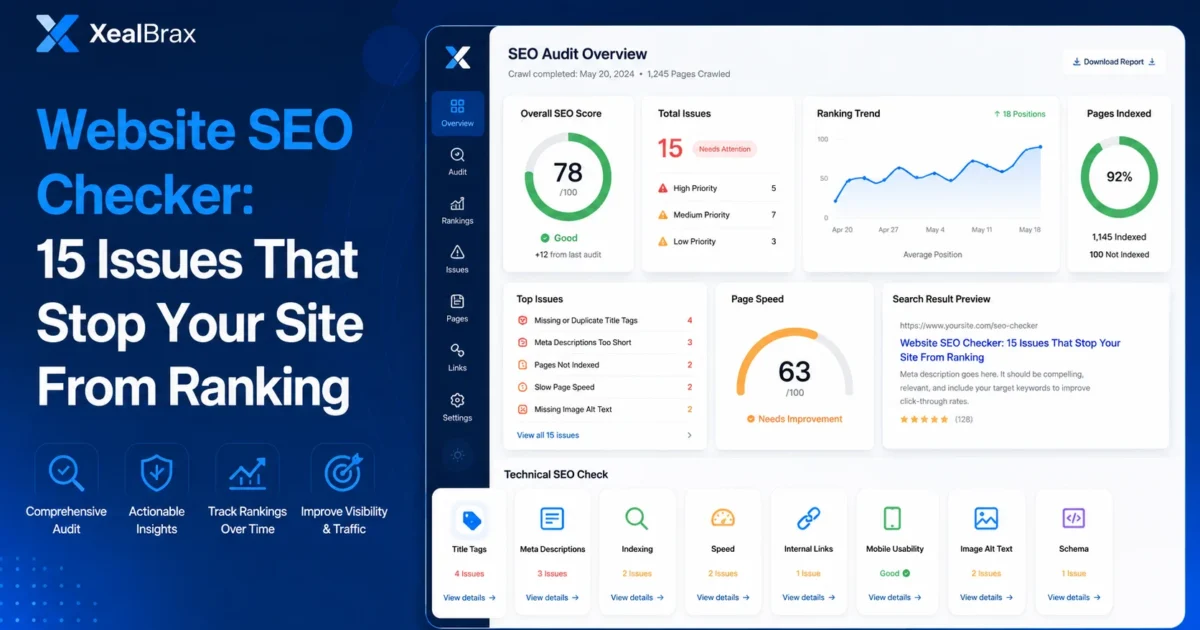
A website SEO checker helps you find the issues that can stop a page from ranking, getting clicks, or being understood properly by search engines. If your site has weak title tags, missing meta descriptions, slow loading pages, indexing problems, poor internal links, or missing image ALT text, your content may struggle even when the business, product, or service is useful.
This guide explains 15 common issues a website SEO checker can help identify, why they matter, and how to start fixing them. It is written for small businesses, creators, online stores, WordPress website owners, Shopify sellers, Nigerian business owners, and anyone who wants a clearer starting point before spending more on traffic.
Start here: Run your website through the free XealBrax SEO Audit Tool to check title tags, meta descriptions, headings, links, speed, images, schema, and technical SEO signals.
What Is a Website SEO Checker?
A website SEO checker is a tool that reviews a page or website for search visibility issues. It usually checks on-page SEO, technical SEO, page structure, metadata, links, images, speed signals, indexing signals, and other factors that can affect how easily search engines understand a page.
A good SEO checker does not guarantee rankings. Instead, it gives you a practical report showing what may need attention. That report can help you decide what to fix first.
Google’s SEO Starter Guide explains that SEO is about helping search engines crawl, index, and understand your content while making improvements that support your presence in Search. A website SEO checker helps you review those basics more efficiently.
Why Your Website Needs an SEO Check
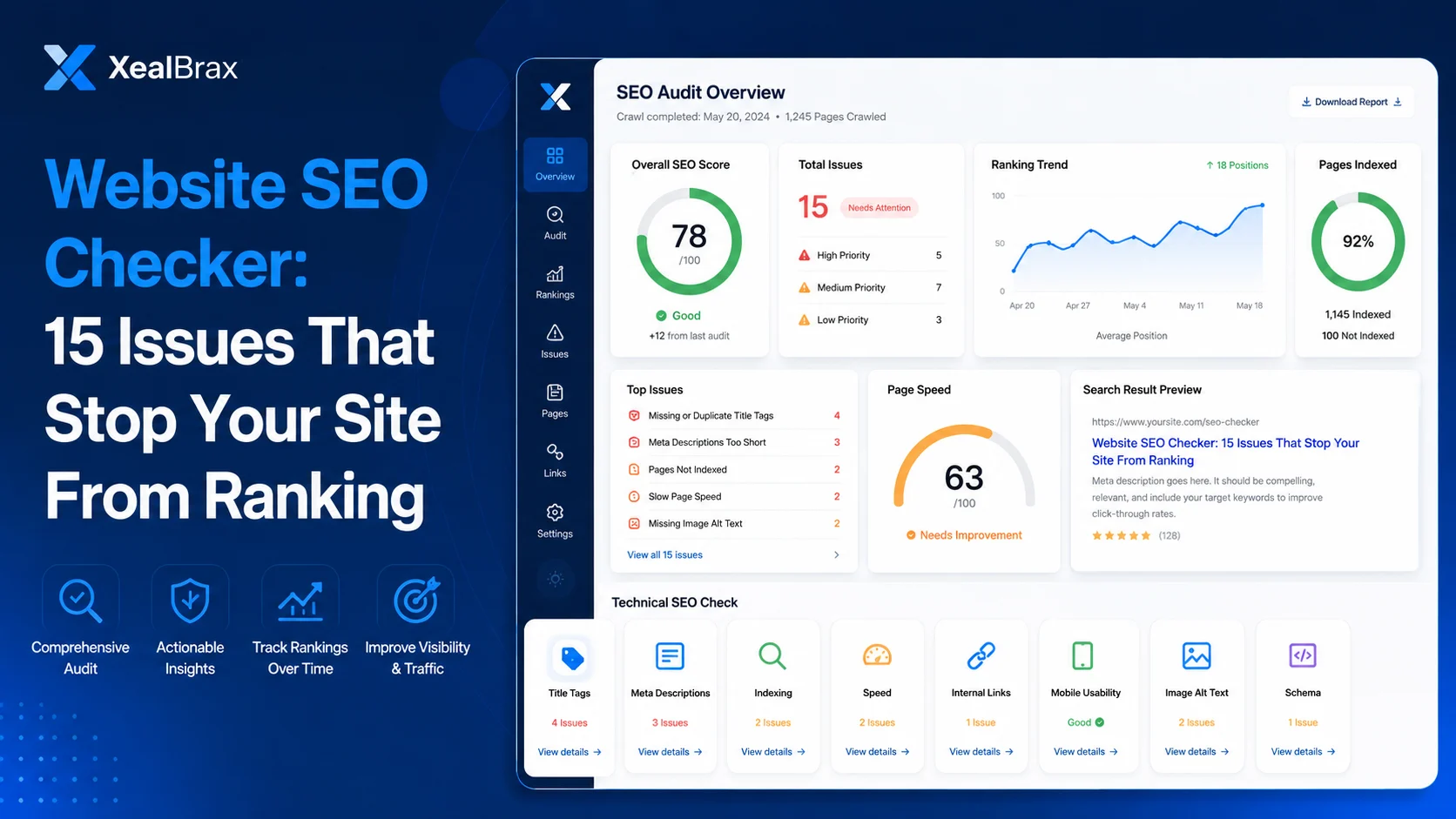
Many websites look fine on the surface but still have hidden SEO problems. A page can have a beautiful design and still be difficult for search engines to understand. A product page can look professional and still have a weak title, missing description, poor internal links, slow mobile loading, or no structured data.
This is why checking your website matters. It gives you a clearer picture of what is happening behind the design.
- Business websites can find missing metadata, weak service page structure, and poor internal linking.
- Online stores can check product titles, descriptions, image ALT text, and product page speed.
- Creators can improve personal brand pages, landing pages, and content hubs.
- WordPress site owners can identify speed, plugin, image, schema, and technical SEO issues.
- Small businesses can understand what to fix before investing more into ads or content.
Website SEO Checker: 15 Issues That Stop Your Site From Ranking
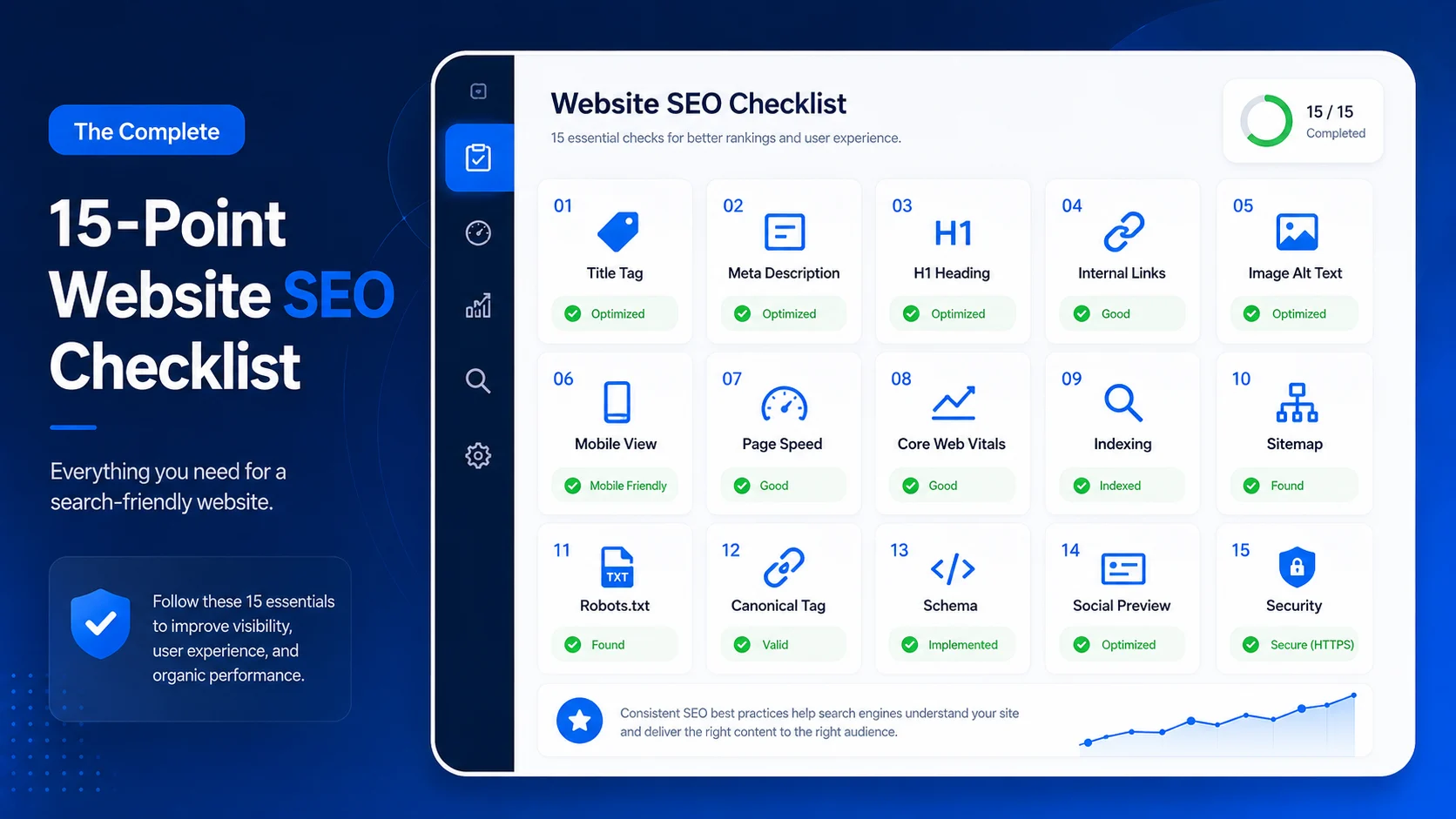
Below are 15 common problems a website SEO checker can help you find. Not every issue has the same impact on every website, but each one can affect visibility, user experience, or the way search engines understand your pages.
1. Weak or Missing Title Tags
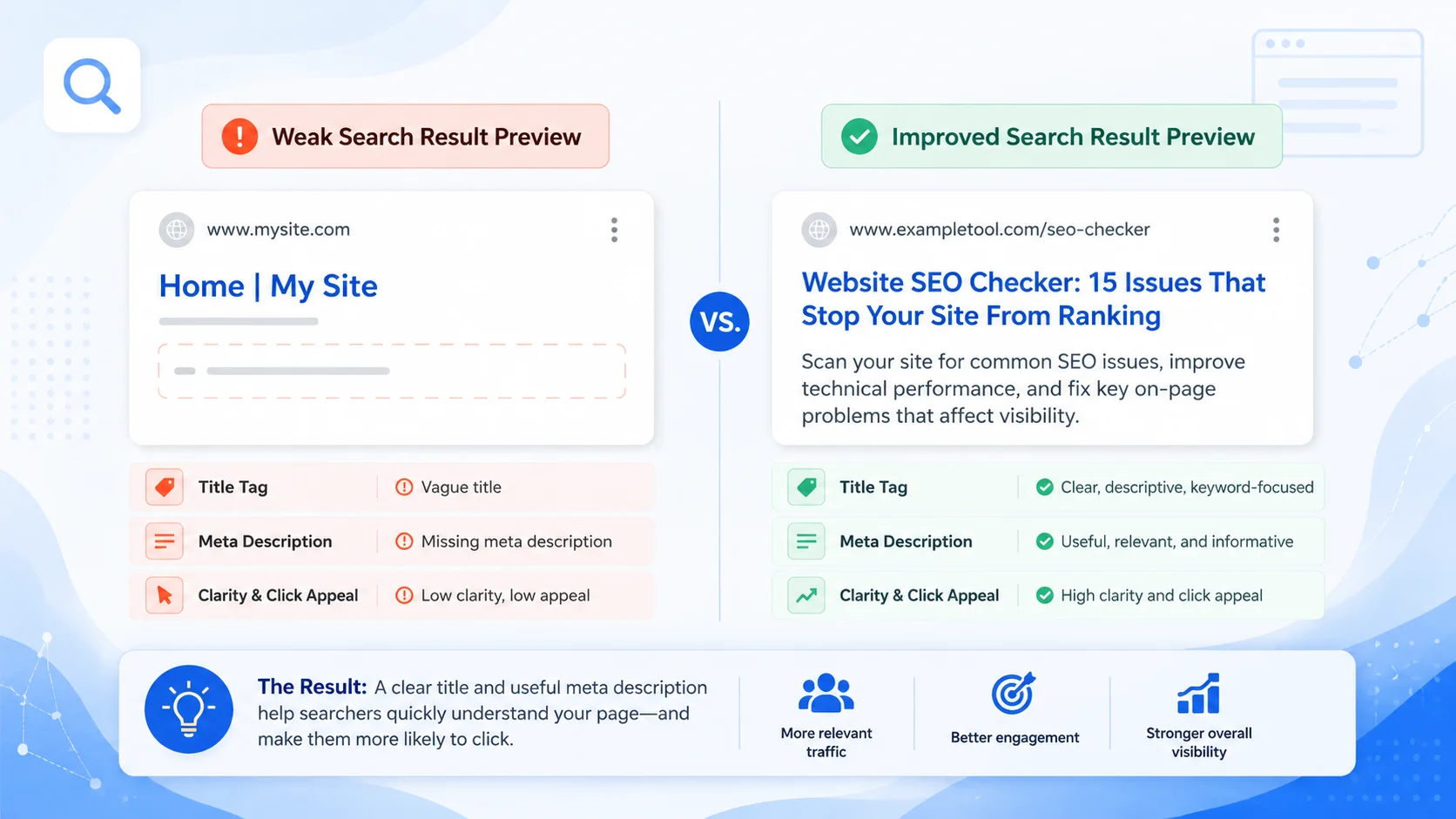
The title tag is one of the most important on-page SEO elements. It helps describe what the page is about and may appear as the clickable headline in search results.
A weak title tag can make a page look unclear. A missing title tag can make it harder for search engines and users to understand the page quickly.
Common title tag problems
- The title is too short, such as “Home” or “Services.”
- The title is too long and gets cut off.
- The title does not include the main topic.
- Multiple pages use the same title.
- The title sounds generic or unclear.
Quick Fix
Write a unique title for each important page. Put the main topic near the beginning and make the title useful for a real searcher, not just a search engine.
2. Missing or Poor Meta Descriptions
A meta description is the short summary search engines may use below your page title. It does not guarantee ranking, but it can affect how useful and clickable your search result looks.
If your meta description is missing, too short, duplicated, or vague, users may not understand why they should click your result.
Useful tool: If your website SEO checker finds missing or weak metadata, use the XealBrax Meta Tag Generator to create better SEO title and meta description ideas.
3. No Clear H1 Heading
The H1 is usually the main visible heading on a page. It should clearly describe the page topic. If the H1 is missing, duplicated, or unrelated to the page, the structure becomes weaker.
A page should generally have one clear main heading, followed by useful H2 and H3 sections. This helps users scan the page and helps search engines understand the content structure.
What to check
- Does the page have one clear H1?
- Does the H1 match the page topic?
- Are H2 headings used to organize key sections?
- Does the heading structure help users scan the page?
4. Thin or Unclear Page Content
A page can have good metadata but still fail if the actual content is too thin or unclear. Search engines need enough useful content to understand what the page is about, and users need enough context to trust the page.
Thin content does not always mean short content. A short page can be useful if it answers the query clearly. The problem is when the content does not explain the topic, answer the user’s question, or support the page goal.
Signs of unclear content
- The page does not answer the main question.
- The page has vague service descriptions.
- The product page has weak benefits and missing details.
- The content repeats keywords without explaining anything useful.
- The page has no examples, steps, proof, or next action.
5. Poor Internal Linking
Internal links help users and search engines move through your site. If important pages are not linked from anywhere, they may be harder to discover and weaker in your site structure.
A website SEO checker can help detect whether a page has internal links, but you should also review whether those links are useful and relevant.
Internal links to add on business websites
- From blog posts to related tools or service pages.
- From service pages to relevant case studies or contact pages.
- From product guides to product listing pages.
- From the homepage to the most important pages.
- From tool pages to educational guides that explain the topic further.
For example, this guide naturally links to the XealBrax SEO Audit Tool, the Meta Tag Generator, and the free SEO and AI tools page.
6. Missing Image ALT Text
Image ALT text helps describe images for accessibility and can also help search engines understand image content. Google’s image SEO documentation recommends using descriptive filenames, titles, captions, and ALT text where useful.
A website SEO checker may flag images that have missing ALT attributes. This is common on blogs, product pages, service pages, and WordPress media uploads.
Better image SEO habits
- Use descriptive image filenames before upload.
- Add useful ALT text that describes the image.
- Place images near relevant text.
- Compress images so they do not slow down the page.
- Use captions when they add context for readers.
Example
Instead of uploading IMG_4581.webp, use a filename like website-seo-checker-dashboard.webp and add ALT text that describes what the image shows.
7. Slow Loading Speed
Page speed affects user experience. If a page loads slowly, users may leave before reading, submitting a form, viewing a product, or contacting the business.
A website SEO checker may include PageSpeed or performance signals, but you should also test important pages manually on mobile devices. Many websites perform differently on desktop and mobile.
Common causes of slow pages
- Large uncompressed images.
- Too many plugins or scripts.
- Poor caching configuration.
- Heavy page builders.
- Unoptimized fonts, CSS, and JavaScript.
- Cheap hosting or overloaded servers.
8. Poor Core Web Vitals
Core Web Vitals are Google’s real-world user experience metrics for loading performance, interactivity, and visual stability. These signals help website owners understand whether pages feel fast, responsive, and stable for users.
Poor Core Web Vitals can point to problems such as slow main content loading, delayed user interaction, or layout shifts that move content while the page is loading.
What to review
- Loading: how quickly the main content appears.
- Interactivity: how quickly the page responds to clicks or taps.
- Visual stability: whether the layout shifts unexpectedly.
Need help? If speed and Core Web Vitals issues are affecting your WordPress website, XealBrax can help review performance, images, caching, and technical SEO setup.
9. Mobile Usability Problems
Many users visit websites from mobile devices. If the mobile layout is difficult to use, users may leave even if the content is useful.
Mobile problems can also affect conversions. A contact form that is hard to fill, a button that is too small, or a product page that loads slowly can reduce results.
Mobile issues to check
- Text is too small to read.
- Buttons are too close together.
- Images overflow the screen.
- Forms are difficult to complete.
- Menus are hard to open or close.
- Popups block important content.
10. Indexing Problems
If Google cannot index a page, the page cannot appear normally in Google Search. Indexing problems can happen for many reasons, including noindex tags, crawl blocks, poor internal linking, duplicate content, or technical errors.
A website SEO checker may detect some indexing signals, but you should also use Google Search Console to inspect important URLs.
Indexing checks to review
- Is the page set to
indexinstead ofnoindex? - Is the page blocked by robots.txt?
- Is the page included in your sitemap?
- Does the page have internal links pointing to it?
- Does Google Search Console show crawl or indexing warnings?
11. Blocked Pages in Robots.txt
The robots.txt file tells search engine crawlers which parts of a site they can or cannot crawl. A mistake in robots.txt can block important pages or sections of your website.
This is especially important after a redesign, migration, staging setup, or developer handover. Sometimes test settings accidentally remain active on the live website.
What to check
- Is robots.txt accessible?
- Does it accidentally block important pages?
- Does it include your sitemap URL?
- Were staging or development rules left active?
12. Missing or Incorrect Sitemap
A sitemap helps search engines discover important URLs on your website. Most WordPress SEO plugins, including Rank Math, can generate a sitemap automatically.
A website SEO checker can help detect whether common sitemap URLs exist, but you should also confirm that your sitemap contains the right pages.
Sitemap issues to avoid
- The sitemap is missing.
- The sitemap returns an error.
- The sitemap includes private, thin, or low-value pages.
- The sitemap excludes important service, product, or blog pages.
- The sitemap was not submitted in Google Search Console.
13. Canonical Tag Mistakes
A canonical tag tells search engines which URL should be treated as the preferred version of a page when similar or duplicate versions exist.
Canonical mistakes can confuse search engines, especially when pages point to the wrong URL, point to the homepage, or point to a version that redirects.
Common canonical problems
- The canonical tag points to the wrong page.
- The canonical points to the homepage instead of the current page.
- The canonical URL redirects.
- The canonical URL uses the wrong protocol or domain version.
- Duplicate pages have inconsistent canonical tags.
14. Missing Schema Markup
Schema markup helps describe certain types of content in a structured way. It can be useful for organizations, articles, FAQs, products, services, reviews, breadcrumbs, and other content types when implemented correctly.
Missing schema does not automatically stop a page from ranking, but structured data can make pages easier to understand and may support enhanced search features when eligible.
Schema types to consider
- Organization: for business identity.
- WebPage: for important pages.
- FAQPage: when FAQ content is visible on the page.
- Product: for product pages with visible product details.
- Service: for service pages where the service is clearly described.
- BreadcrumbList: for breadcrumb navigation.
Important Note
Do not add schema that is not supported by visible page content. If the page does not visibly include FAQs, products, reviews, or steps, do not mark them up as if they exist.
15. Weak Trust and Conversion Signals
SEO is not only about being found. Once users arrive, they need to understand who you are, what you offer, why they should trust you, and what to do next.
Weak trust and conversion signals can reduce leads, sales, sign-ups, or inquiries even when traffic improves.
Trust and conversion signals to review
- Clear contact information.
- Useful about page.
- Service or product details.
- Case studies, testimonials, examples, or proof where available.
- Clear call-to-action buttons.
- Fast and secure website experience.
- Privacy policy, terms, and cookie information.
If your website gets visitors but no leads, the problem may not only be SEO. It may also be messaging, layout, trust, or conversion structure.
Check Your Website SEO for Free
Use the free XealBrax SEO Audit Tool to check common website SEO issues before you spend more time or money on traffic, content, ads, or redesign work.
How to Use the XealBrax Website SEO Checker
The XealBrax SEO Audit Tool gives you a practical starting point for reviewing your website. It checks common SEO and technical signals, then gives you a score and recommendations.
- Enter your website URL: add the page or website you want to check.
- Run the audit: the tool reviews common SEO, speed, metadata, link, image, and technical signals.
- Review the preview: check the score and sample recommendations.
- Unlock the full report: submit your email to receive more complete details.
- Fix issues by priority: start with missing titles, descriptions, indexing, speed, and major technical problems.
If the audit shows metadata problems, use the XealBrax Meta Tag Generator. If you are optimizing store or marketplace pages, use the Product Listing Optimizer. If you want help implementing fixes, review XealBrax Services.
Website SEO Checker vs Manual SEO Audit
A website SEO checker is a strong starting point, but it does not replace human review. Tools are useful for finding issues quickly. Manual review is useful for judging context, business goals, competition, content quality, and conversion strategy.
Use a website SEO checker when you need to:
- Find quick technical issues.
- Check metadata and heading structure.
- Review speed and mobile signals.
- Check image ALT text and internal links.
- Create a first list of SEO fixes.
Use manual SEO help when you need to:
- Prioritize fixes by business impact.
- Improve content strategy.
- Plan service page or product page structure.
- Fix WordPress speed or technical issues.
- Build a long-term SEO and visibility strategy.
Helpful SEO Resources
For deeper guidance, compare your website audit results with trusted search documentation. Google’s SEO Starter Guide explains common improvements that help search engines crawl, index, and understand content. Google’s Core Web Vitals documentation explains real-world user experience metrics for loading, interactivity, and visual stability. Google’s image SEO best practices explain the value of descriptive filenames, titles, captions, and ALT text.
Use these resources alongside the XealBrax SEO Audit Tool to understand what your site may need before making bigger SEO or website changes.
FAQ: Website SEO Checker
What is a website SEO checker?
A website SEO checker is a tool that reviews a website or page for common SEO issues such as missing title tags, weak meta descriptions, poor headings, slow speed, image problems, indexing issues, internal link gaps, and missing structured data.
Can a website SEO checker tell me why my site is not ranking?
A website SEO checker can identify common issues that may affect search visibility, but it cannot guarantee the full reason a page is not ranking. Rankings can also depend on content quality, competition, search intent, authority, user experience, and technical accessibility.
What are the most common SEO issues on small business websites?
Common issues include weak title tags, missing meta descriptions, unclear headings, thin service pages, poor internal linking, large images, slow mobile speed, missing schema, indexing problems, and weak calls to action.
How often should I check my website SEO?
Check important pages before publishing, after major edits, after a redesign, and whenever traffic drops unexpectedly. For active business websites, a monthly SEO check can help catch issues early.
Can XealBrax help fix the SEO issues found by the checker?
Yes. XealBrax provides tools to identify issues and services to help with SEO, metadata, WordPress speed, technical fixes, website structure, and online visibility improvements.
Find and Fix the SEO Issues Holding Your Site Back
Start with a free SEO audit, review the issues, then use XealBrax tools or services to improve your website visibility step by step.

A Personal Note From Collins E. Iyorah, Founder of XealBrax
I built XealBrax because creators, bloggers, and small businesses shouldn’t have to piece together fragmented tools to grow online. Whether you are optimizing your website performance, utilizing our AI-driven utilities, or scaling through our Creator Network, our goal is to give you a transparent, penalty-free path to digital success. If you want a complete look at how we help brands scale, read my personal guide to get started.